

Before you start
- Make sure your tenant has a Custom Domain configured.
- Confirm you are using Universal Login for all signup and login prompts, and ensure the Customize Login Page toggle has been disabled for Login Prompts.
- Check that you have a Custom Page Template configured.
Use Cases
Customize Signup and Login Prompts supports two use cases: custom content and data capture. Custom content is static content like text, links, or images placed directly on the signup and login prompts. Data capture uses form elements dynamically added to the signup and login prompts, which is useful for collecting and validating user consent or user-produced data like surname.Terminology
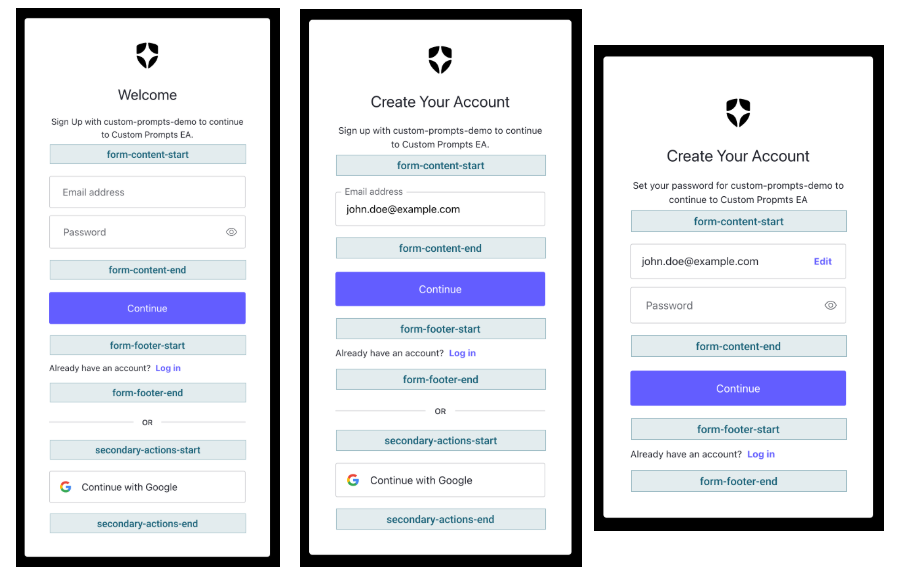
A prompt is a specific step in a given authentication flow. Each prompt has at least one screen and, depending on tenant configuration, each supported screen has either four or six entry points, which are locations in the screen where custom code (partials) can be inserted. The following prompts can be customized: Login screensloginlogin-idlogin-passwordlogin-passwordless-sms-otplogin-passwordless-email-codepasskey-enrollmentpasskey-enrollment-local
signupsignup-idsignup-passwordcustomized-consentpasskey-enrollmentpasskey-enrollment-local
form-content-startform-content-endform-footer-startform-footer-end
secondary-actions-startsecondary-actions-end
Use the Auth0 Dashboard to manage Partials
Use the Dashboard to insert custom fields and content into Login and Signup screens using partials.- Navigate to Auth0 Dashboard > Branding > Universal Login, and select Enhance screens with partials.
- Select the Screen to customize with the partials editor.
Screens can have the following Rendering modes:
- STANDARD: The
screenis rendered using the default Universal Login UI; you can use partials to insert code snippets and template variables. - ADVANCED: The
screenis rendered using ACUL and partials do not apply. - ADVANCED (FILTERED): The
screenis rendered with ACUL applied to specific applications and organizations; partials only apply toscreensexcluded from ACUL filters.
- Select ENTRY POINTS to insert code snippets and template variables.
- Select to add CODE SNIPPETS to the selected entry point.
- Select { } to add TEMPLATE VARIABLES to the selected entry point.
- Select ACTIONS to add Actions and apply custom logic using your partials fields and content.
- Select Save and Publish to update your Screen.
![[partials]](https://mintlify.s3.us-west-1.amazonaws.com/auth0/docs/images/universal-login/partials-editor.png)
Use the Management API to manage Partials
Partials can be a maximum of 10,000 characters. You can manage Partials using the Auth0 Management API at/v2/prompts/{prompts_name}/partials. Every prompt must specify the screen when adding, updating, or deleting a partial. Below is an example call to view all existing partials for a prompt, noting that ulp-container prefix is not required when referencing entry points in API calls.
auth0 ul customize in your terminal.
Style and Validate Form Inputs
Customize Signup and Login Prompts offers pre-built styles and support for client-side validations for certain HTML form elements. The following elements are supported:<input type="text"><input type="number"><input type="checkbox"><input type="password"><input type="email"><input type="tel"><input type="url"><select><textarea>
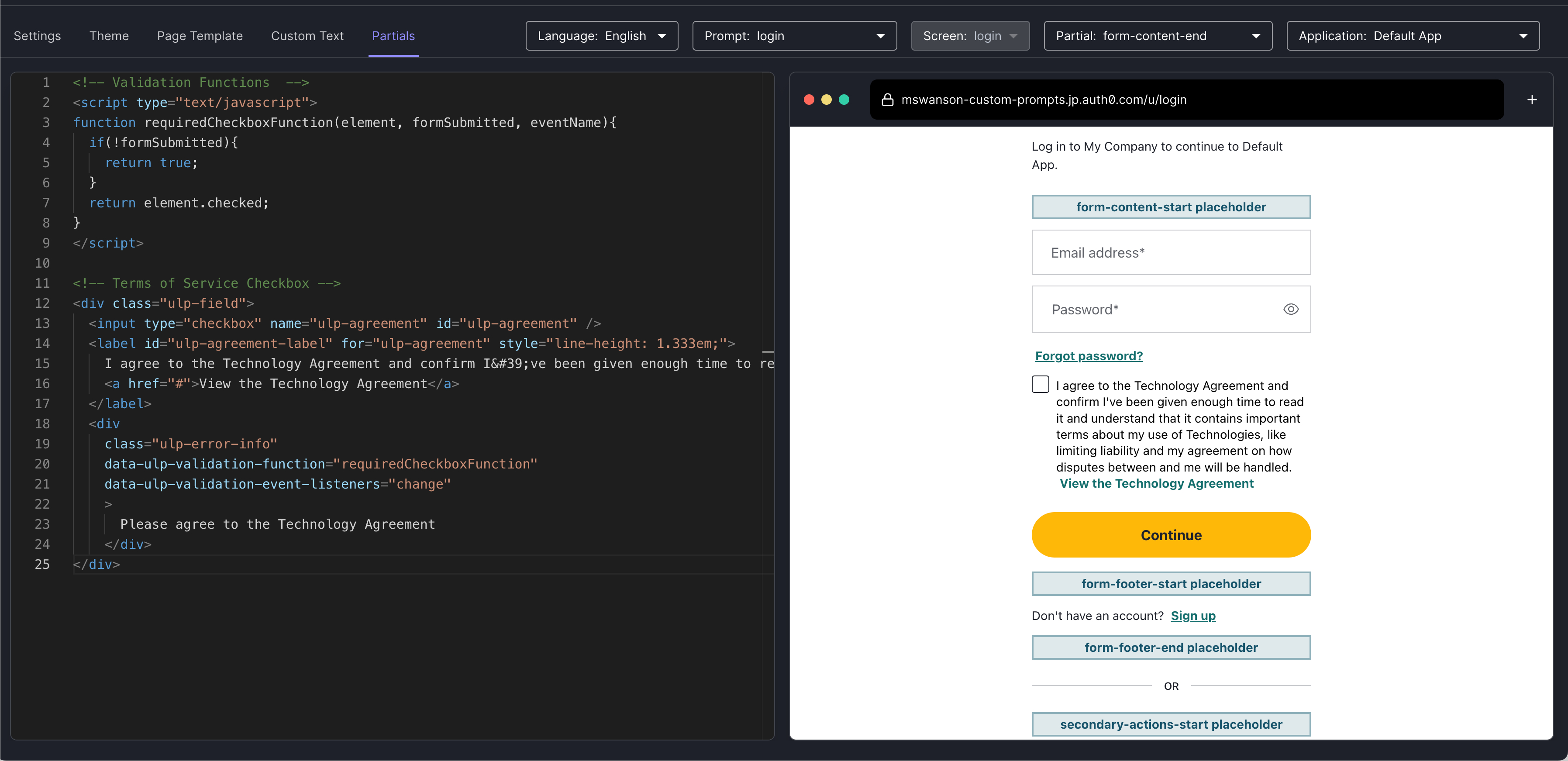
<div> with the ulp-field class. Similarly, add the ulp-error class to the same <div> to use pre-built error styles. If the ulp-error-info element is present, a styled error message will also be displayed.
Client-Side Validation
The feature’s client-side validation framework allows customers to validate user input using HTML attributes to execute one or more custom validation functions. Validation functions can be included directly in the Partial or included in the<head> of the page template.
To add client-side validation to a form element:
- Reference the validation function using the
data-ulp-validation-functionattribute on the<div class="ulp-error-info">element. - Declare which DOM events the validation function should be run on using the
data-ulp-validation-event-listenersattribute on the<div class="ulp-error-info">element, noting that validations run automatically on submission. - For WCAG compliance, inputs must be programmatically linked to their error messages - for example, by using
aria-describedby="error-id"andaria-invalid="true"- to ensure screen readers announce validation errors.
Input Field Elements: Pre-built styling for input fields
Input Field Elements: Pre-built styling for input fields
Select Elements: Pre-built styling for select fields
Select Elements: Pre-built styling for select fields
Text Elements: Pre-built styling for text fields
Text Elements: Pre-built styling for text fields
Checkbox Elements: Pre-built styling for checkbox fields
Checkbox Elements: Pre-built styling for checkbox fields
Phone Number Validation: Client-Side Phone Number Validation
Phone Number Validation: Client-Side Phone Number Validation
Screen Reader Validation: Validation for accessible error messages
Screen Reader Validation: Validation for accessible error messages
Localize Content
Partial content can be localized by defining new custom text variables using the Custom Text API. Up to thirty custom text variables can be defined per screen/language combination.Create or Update a Custom Text Variable
The Custom Text API is available here and each variable follows avar-<name> naming convention. Calls to the API must specify the screen when adding, updating, or deleting a custom text variable. Markdown links are supported and are converted to HTML <a> elements before being displayed to users.
Below is an example call to add a variable for the text of a terms of service checkbox label in English and Spanish. See the to learn more.
Use a Custom Text Variable in a Partial
Custom text variables are referenced in partials using theprompts.screen.text object; the reference for the var-tos example in the previous section is prompt.screen.text.varTos. See below for an example of how to use a previously created variable in a partial on the Signup ID Prompt, noting that the Management API’s var-tos variable is referenced as varTos in the partial.
Validate and Save Captured Data
Data captured by custom form elements is available in Actions, and Auth0 recommends validating the data collected Each Action receives the captured data as an object on theevent.request.body. Customers can return a validation error by using the api.validation.error function.
When using a database connection:
- Data from the Signup Prompts is accessible on the
pre-user-registrationtrigger. A validation error from the trigger prevents the user from registering. - Data from Login Prompts is accessible on the
post-logintrigger. Validation errors are forwarded to the customer’s application error page.
- Data from both the Signup and Login Prompts is accessible on the
post-logintrigger. Validation errors are forwarded to the customer’s application error page.
passkey prompts:
- Data from the
passkey-enrollmentprompt is accessible on thepre-user-registrationtrigger. A validation error from the trigger prevents the user from registering. - The
passkey-enrollmentandpasskey-enrollment-localprompts never capture data on the Post Login trigger. - Data from the
passkey-enrollment-localprompt is not accessible since it is always displayed after thepost-logintrigger is run.
Save to User Metadata
From the Action, captured data can be sent to an external API for validation and storage or saved inuser_metadata on the user via api.user.setUserMetadata.